
Problem statement
When organisations start using AWS, one of the biggest worries is cost uncertainty. Teams often worry about unexpected charges, limited visibility, and whether they will notice a problem only after the bill arrives. AWS Budgets helps with this by letting teams set spending thresholds, receive alerts, and feel more in control of their cloud usage. It can be used for actual and forecasted spend, as well as usage, Reserved Instance utilisation, and coverage.
What is AWS Budgets?
AWS Budgets is a tool that helps you keep an eye on your AWS spending and usage. You can set budget limits, get alerts when you are getting close to them, and take action before costs go too far. In some cases, it can also trigger automatic responses or approval-based actions when a limit is reached.
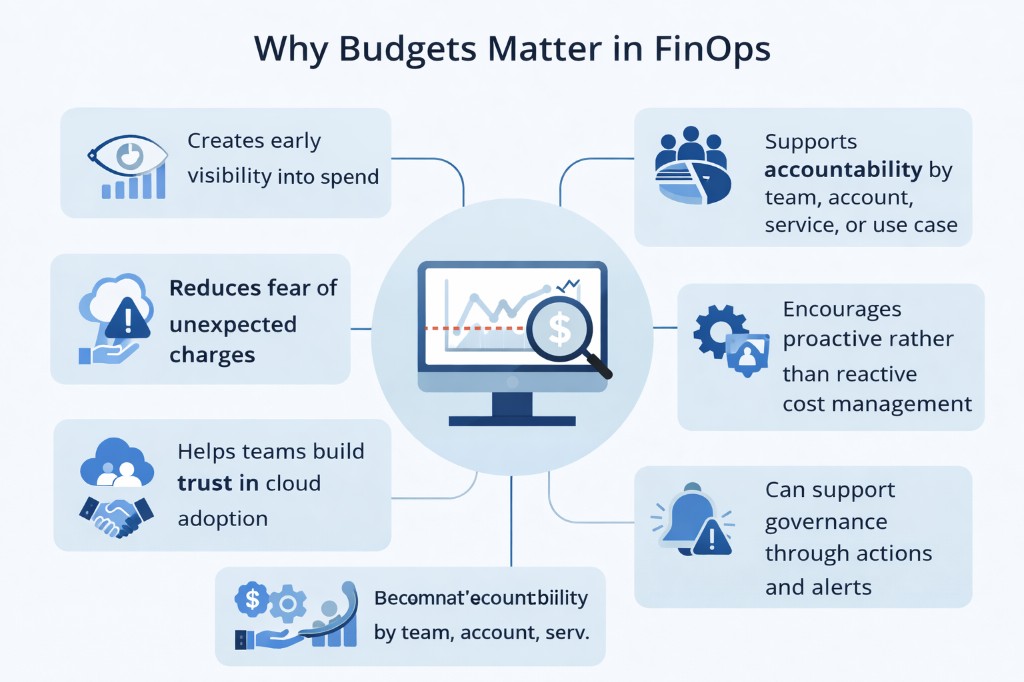
Why budgets matter in FinOps
What types of budgets you can create
Cost budgets
Cost budgets are usually the best place to start. They let you set a spending limit for a period, such as a month, and send alerts when your actual or forecasted spend gets close to that limit. This helps teams spot rising costs early and gives better visibility into overall AWS spend.
Best used for:
- monthly AWS spend
- account or team budget limits
- service budgets like EC2, RDS, or S3
- early warnings before overspend
Usage budgets
Usage budgets track how much of a service you are using rather than how much it costs. This is useful when you want to keep an eye on growth in usage before it turns into a bigger billing issue. It can help you spot unusual patterns early, especially in services where usage can grow quietly.
Best used for:
- tracking storage, data transfer, or API usage
- monitoring growth in service usage
- setting limits for projects or environments
- spotting unusual usage before costs rise
RI utilisation budgets
RI utilisation budgets help you see whether your Reserved Instances are actually being used well. If utilisation drops, it may mean you are paying for reservations that are sitting idle or not being fully used. This can help you get more value from what you have already committed to.
Best used for:
- spotting underused Reserved Instances
- checking whether RI purchases are worth it
- improving use of existing reservations
- reviewing RI strategy
RI coverage budgets
RI coverage budgets show how much of your eligible usage is covered by Reserved Instances. In simple terms, they help you understand whether enough of your workloads are benefiting from your reservations. If coverage is low, it may mean more of your usage is falling back to on-demand pricing.
Best used for:
- checking how much of your workload is covered by RIs
- finding gaps in reservation planning
- improving long-term cost efficiency
- supporting future RI decisions
How to set up an AWS budget
Setting up a budget in AWS is fairly simple and gives teams an early warning if spend starts to rise.
- Open the Billing and Cost Management console in AWS.
- In the left-hand menu, choose Budgets.
- Click Create budget.
- Under budget setup, choose Customize (advanced).
- Select Cost budget.
- Enter the budget name, choose the time period, and set the budget amount.
- Apply filters if needed, such as account, service, tag, or cost category.
- Set up alerts for actual or forecasted spend.
- Add email recipients or SNS notifications.
- Review the budget and create it.
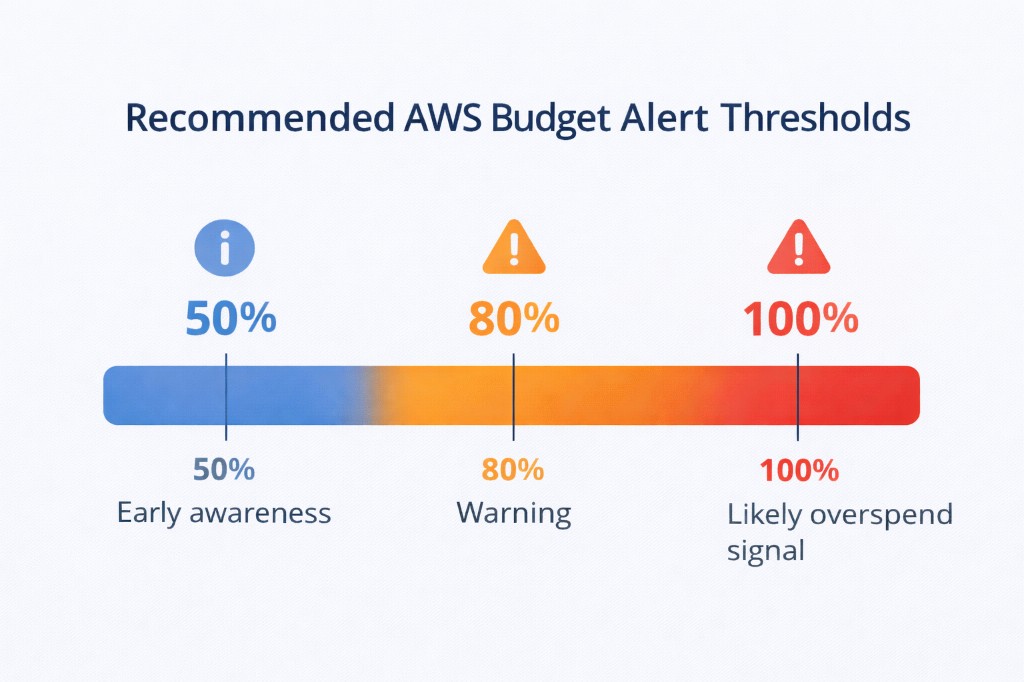
A simple starting point is to use three alert thresholds:
- 50% actual, early awareness
- 80% actual, warning
- 100% forecasted, likely overspend signal
Budget actions
AWS Budgets can do more than just send an email alert. It can also trigger actions when a budget reaches a set threshold, which gives teams another layer of control. This can be useful when you want to do more than simply warn people and instead put some protection in place.
In some cases, these actions can happen automatically. In others, they can be set up so that someone reviews and approves them first. This gives organisations some flexibility depending on how strict or cautious they want to be.
Examples of budget actions include:
- notifying the right people when spend reaches a threshold
- applying an IAM policy to limit what a user or role can do
- applying an SCP from the management account in an AWS Organisation
- stopping or controlling certain resources in supported situations
For many teams, alerts are the best place to start. They are simple, easy to understand, and help build awareness. Budget actions are more useful when you want stronger controls and already have a clearer governance process in place.
Summary
Budgets are not the full answer to cloud cost management, but they are a very good place to start. They help teams move away from uncertainty by making spend more visible and giving people time to act before costs get out of hand. That builds confidence and shows that cloud spending can be managed in a clear and controlled way.